
Taiga from your agent
Ask what is waiting on you, why a run failed or how a product meets your policies from Claude Code, Cursor or any MCP client, and move the work along without opening Taiga.
Engineers spend their day with an agent such as Claude Code or Codex, not in a delivery dashboard. Checking whether a plan needs review or why last night's run failed means leaving it to go and look.
Taiga now works from the client you already use: Claude Code, Codex, Cursor, Claude Desktop and other MCP clients. Ask where a product stands, what is waiting on you or how it meets your policies, then queue an initiative, review a plan or raise a fix for a finding in the same conversation. The client acts as you and never goes past your role. Anything that starts paid agent work or changes what other people see is marked, so your client asks before it does it.
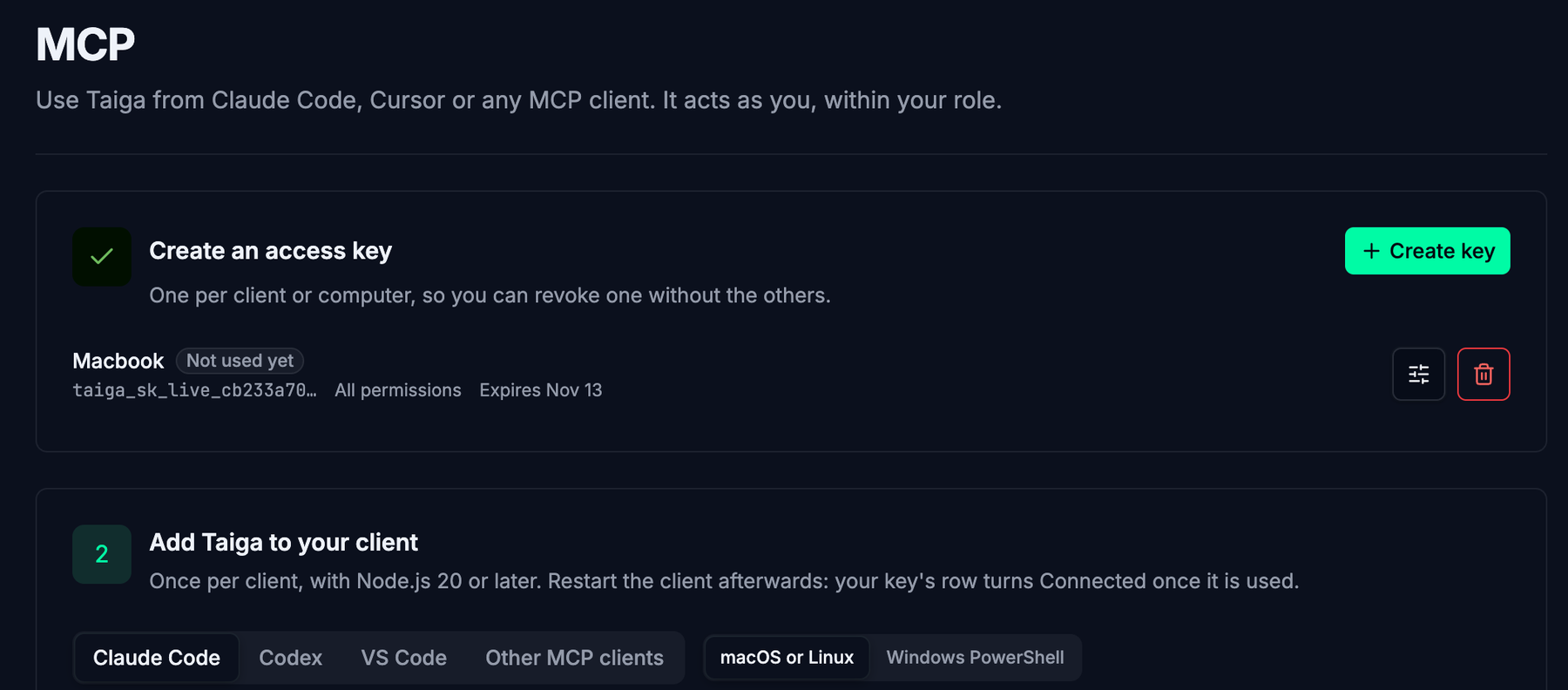
Setup is one page in your account settings: create a key, choose what it may do and when it expires, and copy the command for your client. A lead can ask what is waiting on them before standup and approve the plan in the same session.
Governed delivery meets your engineers in the tools they already chose.
Every change, dated the day it shipped.
Dated the day they shipped, newest first.